This page has id 244
This page is using a template which came originally from another theme. I copied the template file from another of my subdomains which is using the theme and then added it to the themes folder for Responsive at my host server using FTP. I did it as an experiment after reading that you can do this. After transferring the file, I edited it using trial and error to get the content width to match this site. The template came from a very simple theme and seems to work with Responsive OK. When I tried the reverse process, the Responsive template had a lot of theme-specific code in it and so its template didn’t work in the other theme.
This page has a graded background generated by repeating, in the x-direction only, a very small image file, 10px wide by 1000px height, with the background colour equal to the final grading colour, so that the end of the image is not visible.
Clickable links:
CSS tutorial
Projects at ecoCaledon
Green Directory at ecoCaledon
Note: The links above can be reached by holding down “Alt” plus the first letter of the link text, which I have “bolded” here. This makes for better accessibility for people who do not use a mouse. The first link (alt C) is set up to open in a new tab/window. The html for this is target=”_blank”, added to the opening anchor tag. For some reason, when using alt C to select this link it opens a new “pop-up” window, but if you click on it, it opens in a new tab, not a new window.
This link will open in a new tab. It does not have the keyboards option set up. Hovering over the link pops up a box with the “title” in it.
Link styles can be changed from their default settings using what are called pseudo-classes. Colours can be set for the text, text-decoration, background etc for the following: unvisited links, links with the mouse hovering over them, visited links, links which are currently being clicked on (“active” links) and links which have the “focus” on them (e.g. when selected using the keyboard, not the mouse). On this page, the default styling is used. Click here to see an example of different link text colour at the bottom of the “Miscellaneous” page. As well as applying the styles to just a particular page, they can be applied to a class. This link (to the Miscellaneous page) has a class named “big” applied to it.
Here is a photo…..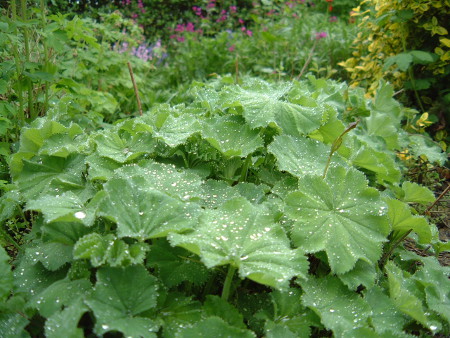
When you clicked the link to go to the Misc. page and the link to return you to this page you were brought to a specific part of the page. A link can also be included to jump about within a page. For example, this link will take you back to the top of this page. The “anchors” which mark where the user is taken to are called “named anchors”. Here I use “id” to name them, which is according to html5. Older versions of html recognise “name”. At the “landing” location, text can be included in the a tag…or not. It will not be formatted as a link or decorated in any way.
You can also use an image as a link by putting the img tag between the a tags for the link. Here an image of a star is used as a link to the top of this page. 
To summarize, you need to add:
At the landing place for the jump: Top of page
At the launching place for jump: Go to Top
You will have to right click and “inspect element” to see the html to be used here!
In this example, the text “Top of page” will get the styling appropriate for a link. If you would prefer it just to look like normal text then put this text after the a tags at the landing place.
Adding text to the “title=” attribute in an “a” tag that contains an “href=” attribute defines what is called the tooltip text for the link. This appears on the mouse pointer when the mouse hovers over the link (text or image).
Here is an example: back to the top of the page again!
